
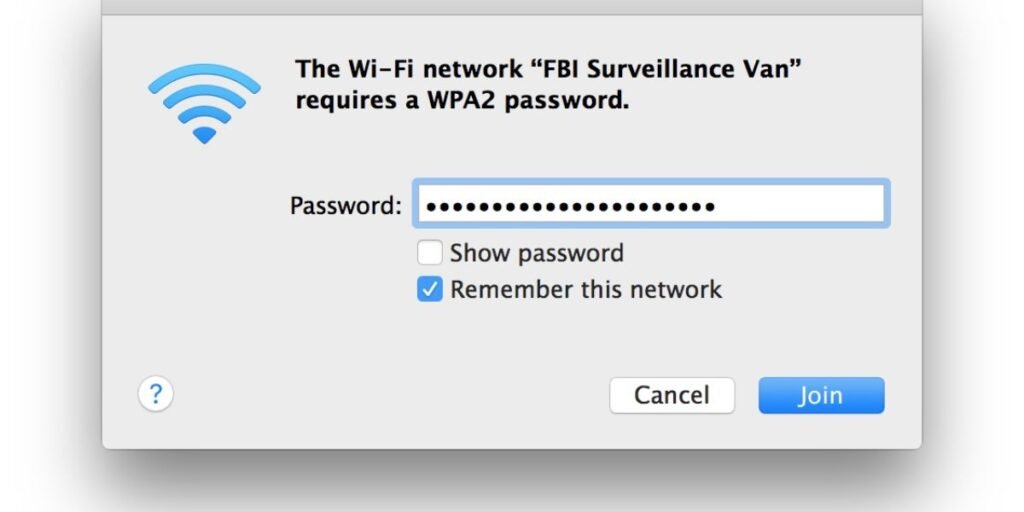
When your iPhone, smart TV, or laptop asks for a WPA2 password, it’s asking for one thing only: the secret passphrase that lets a device join your wireless network. WPA2 stands for Wi-Fi Protected Access 2, the security standard that has protected home and business wireless traffic since the mid-2000s. The password itself is simply the key that unlocks access to that protected network.
For the vast majority of home setups, your WPA2 password is your regular Wi-Fi password. There’s no hidden second password lurking somewhere. Manufacturers and operating systems just use different labels for the same credential, so whether a screen prompts you for a WPA2 key, a Wi-Fi passphrase, or a security key, you’re being asked for the same string of characters.
You’ll run into this term most often when setting up new hardware such as a wireless printer, a streaming stick like a Fire TV or Chromecast, a smart speaker, or a new phone joining an existing home network. It’s one of those small technical speed bumps that trips up more people than it should, mostly because router manufacturers haven’t agreed on consistent wording across devices.
What Is WPA2?
WPA2 is an industry-standard wireless security protocol developed by the Wi-Fi Alliance, the trade association responsible for certifying Wi-Fi devices worldwide. It was formally introduced in 2004, based on the IEEE 802.11i amendment, to replace the badly outdated and easily cracked WEP standard along with the transitional WPA protocol. By 2006, WPA2 support became mandatory for any device carrying the Wi-Fi CERTIFIED label, which is why it became the near-universal default for two decades.
Its job is straightforward but critical: authenticate any device attempting to join a network, then encrypt everything that device sends and receives so a nearby eavesdropper can’t casually read your traffic out of thin air.
WPA2 actually comes in two distinct flavors, and understanding the difference matters more than most guides let on.
WPA2-Personal relies on a single shared password used by every device on the network. This is what you have at home, in a small office, or at a coffee shop. WPA2-Enterprise, on the other hand, authenticates each user individually through a centralized RADIUS server, issuing unique credentials rather than one shared secret. You’ll find this version in corporate offices, universities, and larger organizations where IT teams need to track and revoke individual access without changing a password for the entire building.
The distinction worth remembering: WPA2 is the security technology itself, while the WPA2 password is simply the specific combination of letters, numbers, or symbols you type in to prove you’re allowed on the network.
Is a WPA2 Password the Same as a Wi-Fi Password?
On virtually every standard residential network, yes, a WPA2 password and a Wi-Fi password are the same. The confusion comes down to casual language versus technical labeling, not two separate systems.
Wi-Fi password is what most people say in everyday conversation. WPA2 password is the more precise term used by router firmware, device manufacturers, and IT documentation to specify that the credential belongs to a network secured under the WPA2 protocol specifically.
It helps to break down the three pieces that make up your network’s identity and security:
The SSID is the public-facing name of your wireless network, something like Home_Network_5G or Smith_Family_WiFi. The security protocol is the encryption method your router is currently running, most commonly WPA2-Personal on older routers or WPA2/WPA3-Mixed on newer ones. The Wi-Fi/WPA2 password is the confidential passphrase configured on your router that authorizes a device to actually connect.
WPA2 itself isn’t a password at all. Think of it as the rulebook your router enforces, while the passphrase is the key that proves you’re allowed to play by those rules.
Where Can You Find Your WPA2 Password?
If you need to connect a new gadget and can’t recall your credentials, there are a handful of reliable places to check before you consider resetting anything.
Check the Router Label
Most internet service providers and router manufacturers print the default connection credentials directly on a sticker attached to the physical device. Flip your router over or check the back panel for fields labeled Wi-Fi Password, Wireless Key, WPA/WPA2 Key, Security Key, or PIN.
If you never touched the default settings after unboxing the router, whatever passphrase is printed on that sticker is still your active WPA2 password today.
Check the Router Settings or App
If you customized your password at any point, that factory sticker is no longer accurate, and you’ll need to look elsewhere. You can view or change your current password by logging into your router’s admin panel through a web browser, typically by navigating to 192.168.1.1 or 192.168.0.1, though some newer mesh systems use a dedicated app-only interface instead.
If your equipment comes from a manufacturer like Netgear, ASUS, TP-Link, Eero, or your internet provider directly, their companion mobile app will let you view your active wireless passphrase under the Wi-Fi or network settings section, usually without needing to touch a browser at all.
Check a Previously Connected Device
Any computer or phone that’s already joined the network has the credentials stored locally, and pulling them back out is often the fastest option.
On a Mac, open the built-in Passwords app or Keychain Access to view saved network passphrases. On Windows 11, head to the Control Panel’s Network and Sharing Center, select your network, and check the box for Show characters to reveal the stored password in plain text. On modern iOS and Android devices, saved Wi-Fi passphrases can be revealed from within the Wi-Fi settings menu after verifying your identity with Face ID, Touch ID, or your device passcode.
Review Your ISP Documentation
When a technician installs your equipment, most providers leave behind a welcome packet or installation card containing your network name and default WPA2 password. Digging through that paperwork (or the confirmation email that came with self-install kits) can save you a phone call.
One caveat applies across all four methods: if you’ve since changed your credentials, the original factory label, installation card, and any old documentation will no longer match your current password.
Why Is My Device Asking for a WPA2 Password?
When an iPhone, MacBook, Windows laptop, smart TV, or wireless printer pops up a prompt asking for a WPA2 password, it simply means the network you selected requires authentication before it’ll let the device join.
Connecting any wireless device boils down to two pieces of information: the correct network name (the SSID) and the matching WPA2 password. Get either one wrong, and the connection attempt fails silently or throws an incorrect password error.
A surprisingly common mistake is entering the wrong kind of password entirely. People often type in:
The router’s administrator login password, which is used only to access router settings, not to join the network. Their personal email password, which has no relationship to Wi-Fi access whatsoever. Or their ISP account login, used for billing and account management on the provider’s website.
None of these accounts grant network access unless you’ve specifically configured them to match, which almost nobody does. If a device keeps rejecting your password, double-check you’re entering the actual Wi-Fi passphrase and not one of these unrelated logins.
What Is WPA2-PSK?
WPA2-PSK stands for Wi-Fi Protected Access 2 with Pre-Shared Key. It’s the formal, technical name for what most people simply call WPA2-Personal, and you’ll see it referenced this way in router settings menus and technical documentation.
Pre-Shared Key means exactly what it sounds like: every user and every device on the network shares the identical static password. When your smartphone connects, that password is checked against the passphrase stored inside the router’s memory. Match, and access is granted. No match, and the connection is refused.
This is fundamentally different from WPA2-Enterprise, which requires each individual to log in with a unique username and password verified against a RADIUS authentication server. For home networks, WPA2-PSK remains the practical default because it delivers solid security without demanding the authentication infrastructure that enterprise environments rely on.
How Does a WPA2 Password Protect Your Wi-Fi?
A WPA2 password does considerably more work than acting as a simple digital lock on your front door. It kicks off a layered cryptographic process that most users never see happening behind the scenes.
Here’s what actually occurs the moment you tap connect and enter your password:
Your device sends a request to join the target network’s SSID. The router and your device then perform what’s known as a four-way handshake, a cryptographic exchange that proves both sides know the correct WPA2 password without ever transmitting the plain-text password itself over the air. Once that handshake succeeds, the system generates unique, temporary encryption keys for that specific session using the AES (Advanced Encryption Standard) cipher, the same encryption standard used to protect classified government data. From that point forward, every packet of data traveling between your device and the router is encrypted with those session-specific keys.
A common misconception is that the WPA2 password itself directly scrambles your data. It doesn’t. Instead, the password acts as a seed value used to generate fresh encryption keys for every active connection, which means even someone else connected to the same network can’t easily peek at your web traffic just because they know the shared password too.
How to Choose a Strong WPA2 Password
The real-world strength of WPA2-PSK encryption depends almost entirely on the quality of the passphrase you choose. A short, guessable password is the single biggest weak point in an otherwise solid security system, and it’s the first thing attackers running automated dictionary attacks will try to exploit.
Length matters more than complexity. Aim for a passphrase at least 12 to 16 characters long. Longer passwords exponentially increase the time and computing power required to crack them through brute force.
Avoid anything personally identifiable. Skip street addresses, phone numbers, family names, pet names, and birthdays. These details are often discoverable through social media and make targeted guessing far easier than most people realize.
Combine random words, groups. A memorable phrase built from four or five unrelated words, something like correct-horse-battery-staple, is extremely difficult for automated cracking tools to guess while still being easy for a human to remember and type.
Never reuse critical passwords. Your Wi-Fi passphrase should never double as your email password, banking login, or workplace credential. If one gets compromised, you don’t want it opening every other door in your digital life.
Change factory defaults immediately. Default passwords supplied by manufacturers are frequently generated using publicly known algorithms tied to the device’s serial number or MAC address, meaning attackers with the right tools can sometimes calculate them without ever seeing the printed sticker.
Is WPA2 Still Secure?
WPA2 was a genuine leap forward compared to the WEP and original WPA protocols it replaced, but it is no longer the newest or strongest security standard on the market, and it’s worth understanding exactly where its limitations lie.
In October 2017, Belgian security researcher Mathy Vanhoef disclosed a significant vulnerability in the WPA2 protocol known as KRACK, short for Key Reinstallation Attacks. The flaw allowed an attacker within physical range of a network to potentially intercept and decrypt traffic by manipulating the four-way handshake process under specific conditions. Major vendors including Microsoft, Apple, Google, and virtually every router manufacturer issued patches through firmware and operating system updates in the months that followed, and there’s no widespread evidence the attack was exploited broadly outside research settings. Still, the discovery exposed real structural aging in a protocol that was, by then, already more than a decade old.
Despite that history, WPA2 using AES encryption remains reasonably secure for typical home use in 2026, provided you pair it with a long, unique password and keep your router’s firmware updated regularly. That said, if your hardware supports it, moving to a newer standard is the smarter long-term move, and most routers sold in the past few years make that transition simple.
WPA2 vs. WPA3
WPA3 was introduced by the Wi-Fi Alliance in 2018 as the direct successor to WPA2, and it became a certification requirement for new Wi-Fi CERTIFIED devices starting in July 2020. It closes several of the structural gaps that researchers like Vanhoef exposed, and by 2026 it ships as the default on the overwhelming majority of new routers, including most Wi-Fi 6E and Wi-Fi 7 hardware.
- Release Year: WPA2 (2004) vs. WPA3 (2018)
- Authentication Standard: WPA2 uses Pre-Shared Key (PSK), while WPA3 uses Simultaneous Authentication of Equals (SAE)
- Protection Against Offline Attacks: WPA2 is vulnerable to offline dictionary guessing, whereas WPA3 is resistant to offline dictionary attacks
- Forward Secrecy: WPA2 does not support forward secrecy in Personal mode, while WPA3 supports it natively
- Encryption Strength: WPA2 defaults to 128-bit AES, while WPA3 uses 128-bit as a default and offers 192-bit in Enterprise mode
- Open Network Security: WPA2 leaves public network traffic unencrypted, whereas WPA3 utilizes Opportunistic Wireless Encryption (OWE)
The headline upgrade is SAE (Simultaneous Authentication of Equals), which replaces the old Pre-Shared Key exchange with a handshake that’s specifically designed to resist offline dictionary attacks, even against relatively weak passwords. WPA3 also introduces forward secrecy, meaning that even if an attacker eventually captures your password, they can’t retroactively decrypt traffic they recorded earlier.
If both your router and your devices support WPA3, enable it. Most modern routers offer a hybrid setting labeled WPA2/WPA3-Mixed, which lets newer hardware take full advantage of WPA3 protections while still allowing older WPA2-only devices, like an aging smart thermostat or a decade-old printer, to keep connecting normally.
Frequently Asked Questions
Is a WPA2 password the same as my Wi-Fi password?
Yes. On a standard home network running WPA2-Personal, your WPA2 password and your Wi-Fi password refer to the same credential. The difference is purely terminology.
How do I find my WPA2 password?
Check the sticker on the physical router first, since that’s your default password if it was never changed. If it has been changed, look inside your router’s admin panel, your ISP’s mobile app, or the network settings of a Mac, Windows, iOS, or Android device that’s already connected.
Why does my iPhone ask for a WPA2 password?
Your iPhone shows this prompt when it’s attempting to join a network secured with WPA2 encryption. It needs the correct passphrase to authenticate and establish an encrypted session with that network.
What is a WPA2 password for an HP printer?
An HP printer doesn’t have its own built-in WPA2 password. During wireless setup, it’s simply asking for the passphrase of your home Wi-Fi network so it can join and communicate with your other devices over the same connection.
What is the primary difference between WPA2 and WPA3?
WPA3 replaces the older Pre-Shared Key system with Simultaneous Authentication of Equals (SAE), which prevents attackers from running offline dictionary attacks against a captured password. It also adds forward secrecy, ensuring that intercepted traffic can’t be decrypted later even if the password is eventually discovered.