
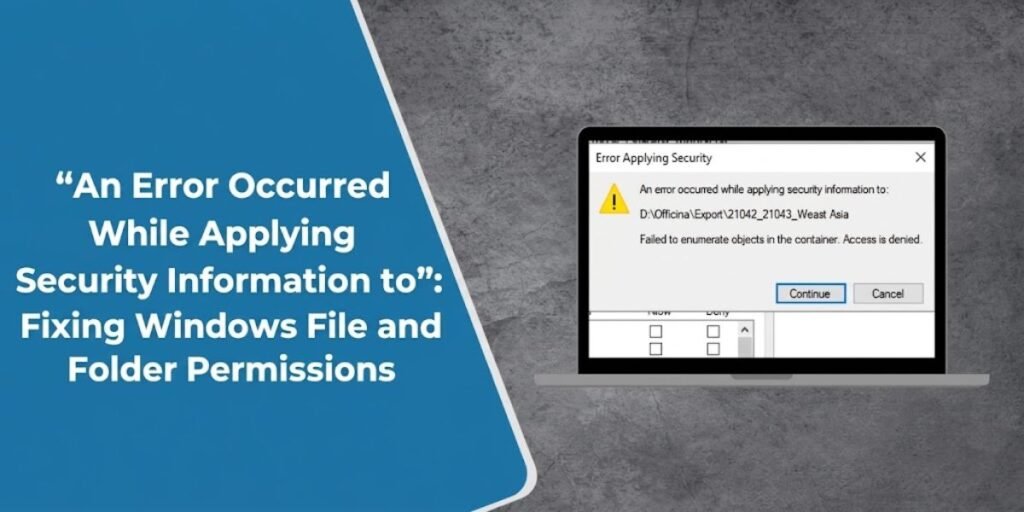
Windows users frequently encounter the frustrating prompt An error occurred while applying security information to when attempting to modify file ownership, security settings, or folder permissions. Alongside this main dialog box, the system often displays the specific sub-error Failed to enumerate objects in the container. Access is denied.
This operational roadblock typically stems from underlying ownership conflicts or restrictive access control lists on the target object or its nested child files. The issue surfaces regularly when migrating files from an alternate Windows installation, managing external storage drives, or altering directories populated with mixed security descriptors. Administrative discussions on platforms like Microsoft Q&A feature numerous troubleshooting cases involving this exact enumeration failure.
Resolving the conflict requires isolating the specific directory or file triggering the denial rather than attempting sweeping permission changes across the entire storage volume.
Why Does “An Error Occurred While Applying Security Information” Appear?
Windows triggers this specific error message when the operating system fails to apply a requested security modification across every nested file and subfolder inside a container.
A common scenario involves taking ownership of a parent folder and instructing Windows to propagate that change downward. If the recursive loop reaches a single file or locked subfolder that the active user account lacks permission to modify, the entire process halts and throws an access denied exception.
The underlying trigger usually falls into one of several distinct operational categories:
- The active user account lacks explicit ownership of the target file or folder.
- A nested child object possesses locked, inherited, or conflicting permissions.
- The files originated from a different Windows PC or separate operating system installation.
- The target directory resides within a protected system location managed by Windows.
- The storage medium operates as a network share or CIFS mount with strict server-side access controls.
Fixing the problem successfully depends on correcting ownership or access rights directly at the localized point of failure.
Fix 1: Check the Read-Only Attribute
Before altering advanced security descriptors, check for basic file attribute restrictions that can block modification attempts.
Right-click the affected file or folder in File Explorer and select Properties from the context menu. Navigate to the General tab and locate the Attributes section near the bottom.
If the Read-only box contains a checkmark or a filled square, click it to clear the attribute. Click Apply and then select OK to save the change.
Attempt the original security modification again. If the error persists, the issue stems from underlying permissions rather than a simple attribute flag.
Fix 2: Change the Owner of the File or Folder
When an account lacks ownership over a directory, Windows restricts security modifications. Taking ownership provides the administrative leverage needed to alter access lists.
Right-click the file or folder, open Properties, and switch to the Security tab. Click the Advanced button near the bottom to open the Access Control Settings window.
Examine the Owner field displayed at the very top of the dialog. Click the Change link next to the current owner’s name.
Type your current Windows username into the object name box and click Check Names to resolve the proper security identifier. Click OK to confirm the selection.
Check the box labeled Replace owner on subcontainers and objects if you need the account to take control of all nested contents. Click Apply to execute the change.
Close out of the property windows, reopen the security settings, and attempt your intended operation again. Note that changing ownership grants control rights but does not automatically assign full modification privileges.
Fix 3: Take Ownership With takeown
When the graphical interface fails to propagate ownership changes through nested directories, the built-in command-line utility provides a reliable alternative.
Open Command Prompt with administrative privileges by searching for cmd, right-clicking the result, and selecting Run as administrator. Execute the following command structure:
| DOStakeown /f “D:\YourFolder” /r /d y |
Replace the example path with the actual directory location on your storage drive. For instance, managing an old archive folder requires a command like:
| DOStakeown /f “D:\OldDocuments” /r /d y |
The /f switch specifies the target directory path, the /r switch instructs the utility to process files and subfolders recursively, and the /d y switch automatically supplies a yes response if Windows prompts for confirmation during recursive scanning. Microsoft Learn documents takeown as the standard utility for allowing administrators to recover control of inaccessible files and directories.
Wait for the processing confirmation to appear in the console window before returning to the folder properties to check your access level. Avoid running recursive ownership commands against the root of the main system drive.
Fix 4: Give Your Account the Required Permission With icacls
Correcting ownership is often only half the battle. If an account owns a folder but the discretionary access control list still blocks modification, permissions must be explicitly granted.
Open an elevated command prompt and use the icacls utility to apply permissions. For standard personal data folders where Modify access is sufficient, run:
| DOSicacls “D:\YourFolder” /grant “%USERNAME%”:(M) /T /C |
When targeting a specific directory like an archive folder, structure the command accordingly:
| DOSicacls “D:\OldDocuments” /grant “%USERNAME%”:(M) /T /C |
If the task strictly requires full administrative control, substitute the modification parameter with full access:
| DOSicacls “D:\OldDocuments” /grant “%USERNAME%”:(F) /T /C |
In these syntax strings, M designates Modify, F designates Full Control, the /T switch applies the rule to all enclosed files and subfolders, and the /C switch instructs the utility to continue processing even if it encounters an isolated access error on a specific file. Microsoft Learn documents icacls as the official tool for displaying and modifying DACL tables. Avoid assigning full control permissions to ordinary data folders unless specifically required by the application utilizing the files.
Fix 5: If the Folder Came From Another PC, Take Ownership of It
Data migration frequently triggers access restrictions due to how Windows handles security identifiers across different operating system installations.
Moving an old hard drive or external SSD to a new computer often leaves files bound to a security SID from the previous operating system installation. Even if the user account name appears identical on both machines, Windows treats them as entirely separate security principals.
Resolving access denied prompts on migrated data requires explicit manual intervention:
- Open the properties menu for the target folder and navigate to the Security tab.
- Click Advanced to open the permission management console.
- Locate the owner field at the top and click Change.
- Input your current user account name, resolve the name, and save the change.
- Apply the ownership update across subcontainers if managing an entire directory tree.
If File Explorer encounters enumeration blocks during this process, drop into an elevated console and run takeown /f “D:\OldDocuments” /r /d y. Follow up with the permission grant command using icacls “D:\OldDocuments” /grant “%USERNAME%”:(M) /T /C to restore complete usability. This exact permission breakdown frequently appears in support discussions for external storage transfers.
Fix 6: If You Are Changing an Entire Drive, Check Its Ownership First
Applying permission changes across an entire physical storage volume requires extreme caution to avoid breaking system dependencies or application links.
When permission errors occur while modifying a secondary or external data drive, avoid applying recursive commands to the root directory immediately. Right-click the drive letter in My Computer, open Properties, navigate to Security, and check the assigned owner under Advanced settings.
If the drive exclusively houses archived personal files originating from an older PC setup, taking ownership of the root and cascading down can successfully clear the blocks.
However, if the volume contains active Windows system files, application installation directories, or operating system restore points, broad permission alterations can corrupt system stability. Treat secondary storage drives and primary operating system partitions with completely different troubleshooting protocols.
Fix 7: Don’t Take Ownership of Protected Windows Folders Just to Remove the Error
System directories feature strict permission baselines designed to protect core operating system files from accidental modification or malware interference.
Encountering permission warnings inside protected locations like C:\Windows, C:\Program Files, or the hidden WindowsApps directory should not be treated as a cue to take broad ownership. Forcing recursive ownership changes and granting full control to personal user accounts across these system paths compromises the security model of the operating system.
If a specific application or administrative task requires access to an isolated file within a protected zone, troubleshoot that specific file rather than stripping security inheritance from the parent directory.
Preserving default operating system permissions ensures that system files maintain their integrity during automated updates and security scans.
Fix 8: If the Location Is a Network or NAS Drive, Check the Share Permissions
Permission blocks on network-attached storage or corporate file servers often stem from remote configuration rules rather than local Windows file settings.
Network locations rely on multiple layers of access control working simultaneously, which can complicate troubleshooting:
- Remote share-level permissions configured on the server.
- Underlying NTFS file permissions residing on the host volume.
- Server-side access control lists and directory policies.
- Active Directory domain group memberships and authentication tokens.
Encountering the enumeration error in a CIFS or SMB network environment usually means the local computer lacks the administrative authority to alter server-side rules.
Troubleshooting network shares requires logging into the storage appliance or contacting the network administrator to adjust share-level security rather than running local command-line tools like takeown against a network mount.
What to Do if takeown Still Returns “Access Is Denied”
Even after updating ownership rules, administrative commands can occasionally fail on specific files within a complex directory tree.
Stubborn files usually fail for one of a few predictable reasons:
- The file is actively locked by a running background service or open application.
- The object is protected by specialized system integrity flags.
- The underlying storage volume is experiencing physical file system corruption.
- The existing security descriptor is completely malformed or orphaned.
If only one or two isolated files trigger errors while the rest of the folder processes successfully, investigate those specific files individually rather than restarting the entire volume scan.
Always verify that the command prompt is running with full administrator rights and that the target directory path contains no typographical errors.
Summary of Troubleshooting Scenarios
| Situation | Recommended First Step |
| Read-only attribute is enabled on the file | Clear the read-only flag in file properties |
| Your user account is not the listed owner | Change the object owner to your active account |
| File Explorer fails to apply ownership changes | Execute the built-in takeown command line utility |
| You own the folder but still cannot modify contents | Grant explicit modify permissions using icacls |
| Folder migrated from an old computer setup | Take ownership and correct downstream permissions |
| Secondary external data drive is locked | Check drive-level ownership before modifying |
| Primary system directory throws permission blocks | Avoid recursive ownership changes on system folders |
| Network share or NAS drive rejects changes | Review remote share-level and server permissions |
| Individual child files continue to fail | Investigate and troubleshoot those specific files |
The Two Commands That Matter Most
Resolving stubborn Windows permission errors effectively relies on understanding the distinct roles of two built-in utilities.
The takeown command handles ownership recovery, allowing an administrator to seize control of locked files and directories when the graphical interface fails.
The icacls command manages the actual discretionary access control list, granting or revoking specific user privileges such as modify or full control access.
Avoid running both utilities blindly across entire system drives. Use takeown specifically when ownership blocks the operation, and deploy icacls when the user account lacks the necessary permission entry within the security table.